Getting started
gitmoleads gives your truck a QR code that turns a scan into a lead. A customer scans the code, fills in a short form, and you get their name and number by email. Here is how to go from nothing to a code on the truck.
1 · Make your page
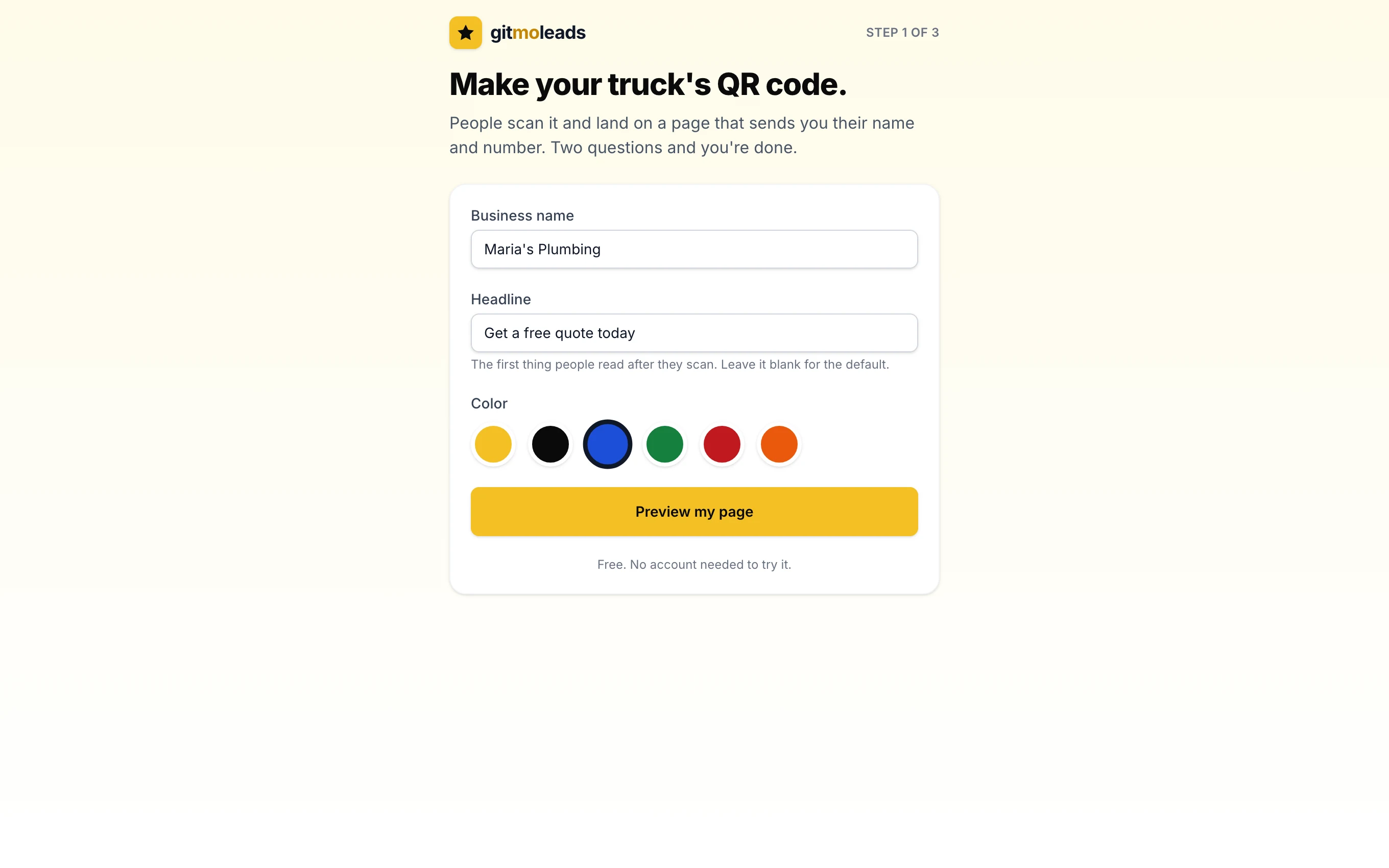
Open gitmoleads.com/start. Type your business name and a headline, and pick a color. The headline is the first thing people read after they scan. Leave it blank and the page says Get a free quote. Tap Preview my page. You do not need an account for this step.
2 · Check the preview
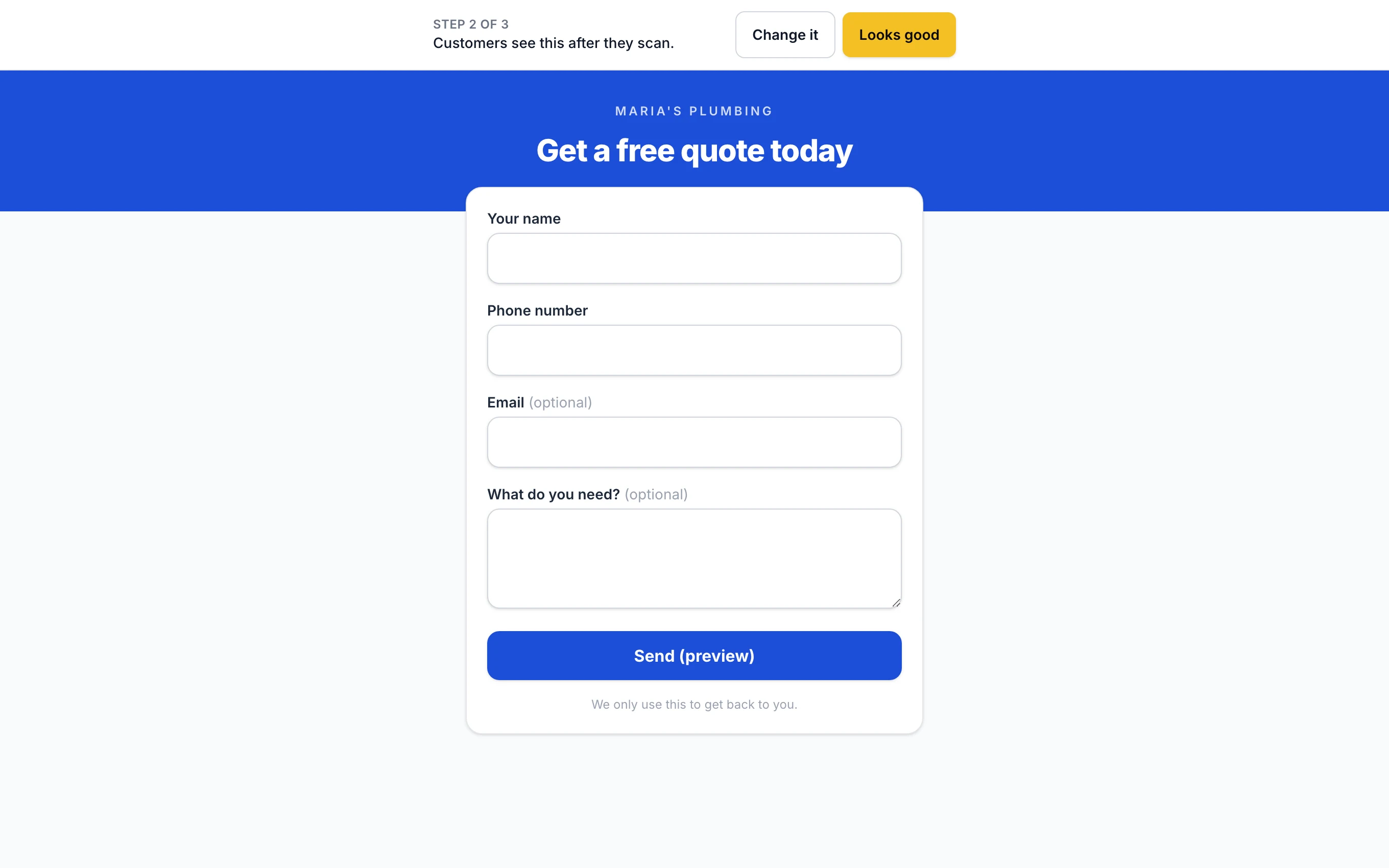
The preview is the page as a customer sees it. Tap Change it to edit the name, the headline, or the color. Tap Looks good when it is right.
3 · Your QR code is live
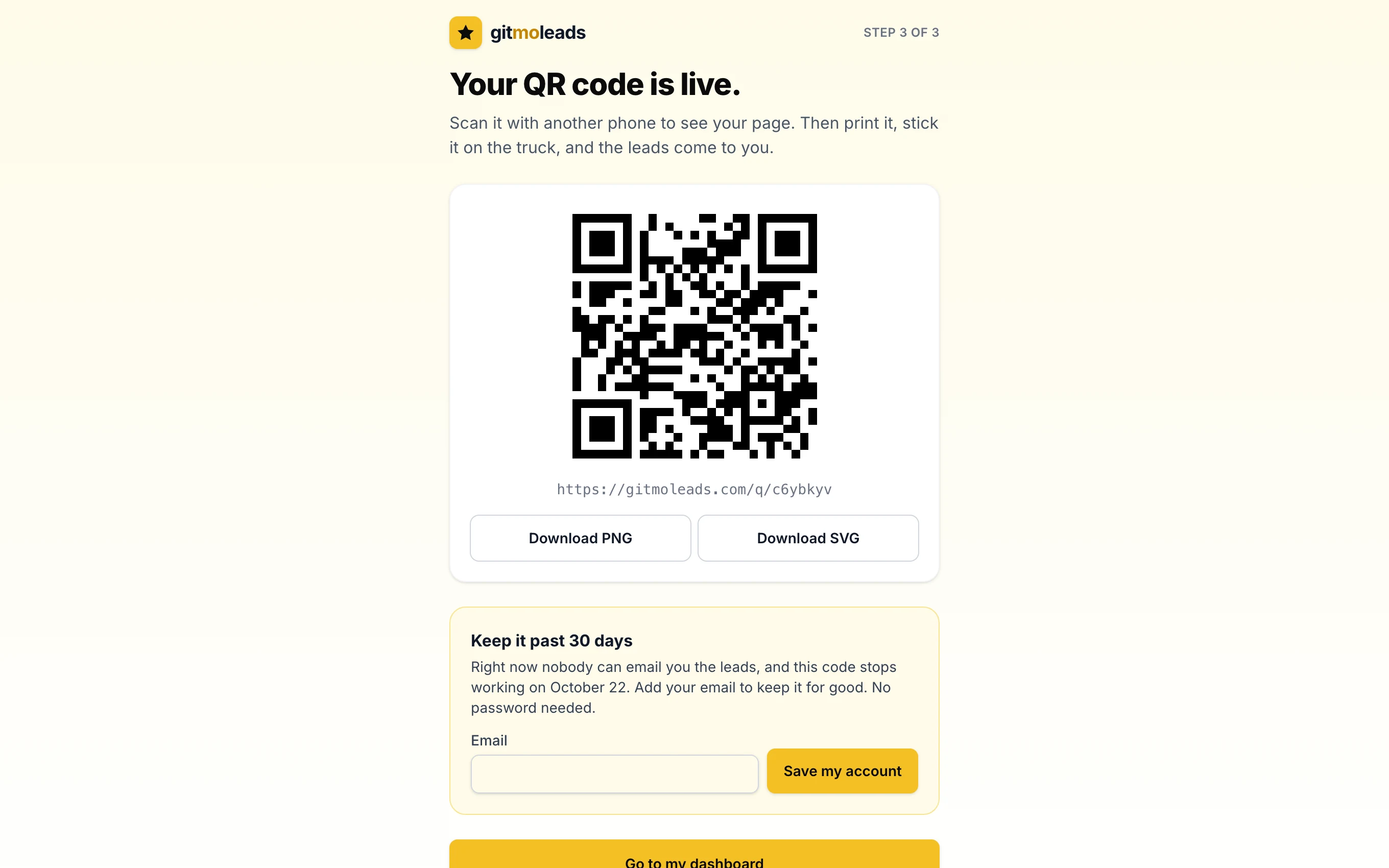
Step 3 shows the QR code and the link inside it, like gitmoleads.com/q/xzdxvhy. Scan it with another phone to see your page. Download PNG and Download SVG save the print files.
4 · Save your account
- 1Enter your emailIn the box Keep it past 30 days on the QR page, or in the yellow box at the top of the dashboard. Tap Save my account.
- 2Open the emailThe subject is Save your gitmoleads account. Tap the button in it. A page opens. Tap Save my account on that page.
- 3DoneThe dashboard says Account saved. Your code now works for good, and every lead goes to that email.
5 · Put the code on the truck
Send the SVG file to the shop that makes your decals. It is a vector file, so it prints sharp at any size. Use the PNG for a yard sign, a flyer, or an invoice. Four rules for a code that scans well:
- Size. A code scans from about ten times its width. A code 6 inches wide scans from about 5 feet. On a truck, 6 to 8 inches works well.
- Contrast. A dark code on a white background. Keep the white margin that is in the file.
- Flat. Put it on a flat panel, not over a seam, a rivet, or a curve.
- Test. Scan the printed decal with your own phone before it goes on the truck.
Did you get a mailer from us?
The mailer has a QR code that says Scan to make your free QR code. That code opens your own account and takes you into the builder. It is not the code for your truck. The code for your truck is the one you download in step 3.
Until you save the account, the mailer code reopens it from any phone. After you save the account, the mailer code only opens the login page. See Account & sign-in.